九宫格图片
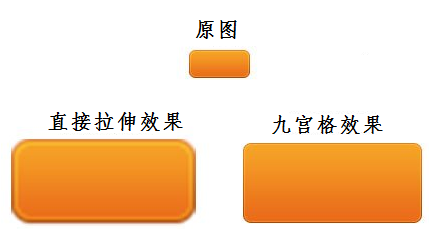
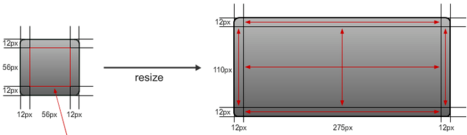
如上图所示正常情况下九宫格绘制会遵循下面的规则:
a. 保持4个角部分不变形
c. 双向拉伸中间部分(即九宫格的中间部分,横向,纵向同时拉伸,PS:拉伸比例不一定相同)
那问题来了,如果我们手上有一张图片(上图 九宫格效果),怎么把它剪裁成九宫格原图,甚至是比原图还小的图片。
由上面的原则,理论上只要保证四个角不变形就弄,边界可以尽可能的切小(PS:前提图片内没有花纹或渐变色等图案)。
用PS是可以实现,不过比较麻烦,切掉四个角再拼接起来。
秉承不会偷懒的程序员不是好的程序员这个原则,做了这个小工具。
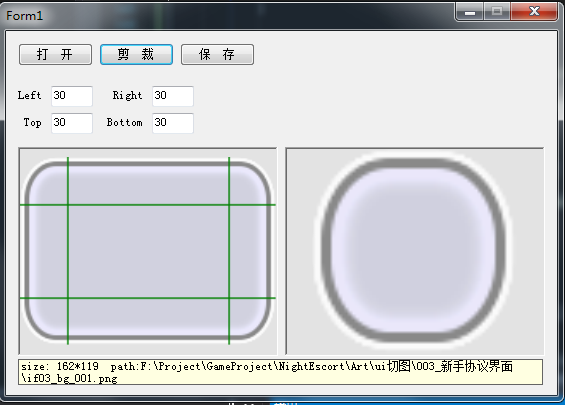
界面
以下是用Windows窗体制作的界面
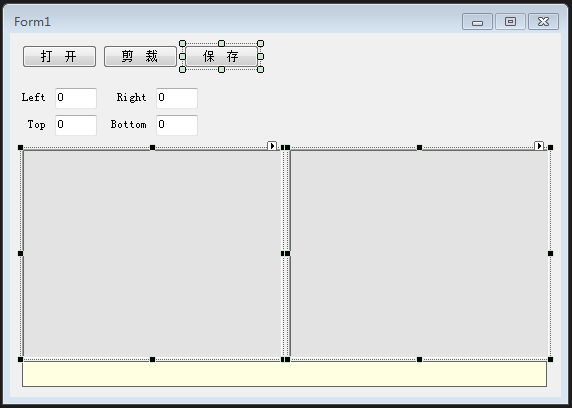
中间两个大窗口是PictureBox,用来显示,原图和剪裁完后的效果图。
功能描述
- 打开,选择要剪裁的图片
- 剪裁,根据下面四个参数剪裁图片
- 保存,保存效果图到文件中
过程
新建工程
Visual Studio中新建一个Windows窗体,基于C#。
打开按钮
打开的功能其实很简单,用new一个OpenFileDialog选择张图片,得到这张图片的绝对路径就行了。
OpenFileDialog fileDialog = new OpenFileDialog();
fileDialog.Multiselect = true;
fileDialog.Title = "请选择文件";
fileDialog.Filter = "图片(*.png)|*.png";
if (fileDialog.ShowDialog() == DialogResult.OK)
{
    imagePath = fileDialog.FileName;
    Image image = Image.FromFile(imagePath);
    TargetPicture.Image = image;
    InfoLabel.Text = "size: " + image.Width + "*" + image.Height + "  path:" + imagePath;
}
剪裁图片
要图片进行剪裁,我们首先需要知道几个参数。
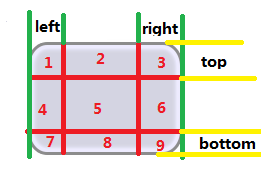
也有是我TextBox中的四个值(left,right,top,bottom)。
用一个结构体来保存四个参数
struct BorderConfig
{
    public int left;
    public int right;
    public int top;
    public int bottom;

    public void Reset()
    {
        left = 0;
        right = 0;
        top = 0;
        bottom = 0;
    }
}
BorderConfig borderConfig;
知道了这四个参数就可以知道1、3、7、9的大小,把这四块从原图中切出来。
将这四块的信息存入一个数组中,其中每一块的包含了开始点(x, y)长宽(width, height)。
struct CaptureConfig
{
    public int x;
    public int y;
    public int width;
    public int height;
    public CaptureConfig(int x, int y, int width, int height)
    {
        this.x = x;
        this.y = y;
        this.width = width;
        this.height = height;
    }
}
CaptureConfig[] configs =
{
    new CaptureConfig(0, 0, left, top),
    new CaptureConfig(fromImage.Width - right, 0, right, top),
    new CaptureConfig(0, fromImage.Height - bottom, left, bottom),
    new CaptureConfig(fromImage.Width - right, fromImage.Height - bottom, right, bottom)
};
/// <summary>
/// 剪裁图片
/// </summary>
/// <param name="picPath">要剪裁图片完整路径</param>
/// <param name="x">剪裁起点x坐标</param>
/// <param name="y">剪裁起点y坐标</param>
/// <param name="width">剪裁宽度</param>
/// <param name="height">剪裁高度</param>
/// <returns></returns>
Bitmap CaptureImage(String picPath, int x, int y, int width, int height)
{
    if (width <= 0 || height <= 0)
        return null;

    //定义截取矩形
    Rectangle cropArea = new Rectangle(x, y, width, height);
    //定义Bitmap对象, 加载图片
    Bitmap srcMap = new Bitmap(picPath);
    //判断超出的位置否
    if ((srcMap.Width < x + width) || srcMap.Height < y + height)
    {
        MessageBox.Show("裁剪尺寸超出原有尺寸!");
        srcMap.Dispose();
        return null;
    }

    //进行裁剪
    Bitmap capMap = srcMap.Clone(cropArea, srcMap.PixelFormat);

    //释放对象
    srcMap.Dispose();
    return capMap;
}
CaptureImage中,通过图片的路径加载图片,再通过每个块的剪裁数据,用Bitmap.Clone保存这块距形数据到新的Bitmap中
这些有取到了四块剪裁完的Bitmap。
合并图片
取到四个边角后,我们要做的就是把这个四角的合并成一张完整图片输入。
具体的方法就是用Graphics新建一个作图区域,把四个角的画上去。
//创建新图位图
Bitmap bitmap = new Bitmap(width, height);
//创建作图区域
Graphics graphic = Graphics.FromImage(bitmap);
//清除整个绘图面并以透明背景色填充
graphic.Clear(Color.Transparent);
//截取原图相应区域写入作图区

foreach (CaptureConfig config in configs)
{
    Bitmap capMap = CaptureImage(imagePath, config.x, config.y, config.width, config.height);
    if (capMap != null)
    {
        graphic.DrawImage(capMap, config.x == 0 ? 0 : left, config.y == 0 ? 0 : top, config.width, config.height);
        capMap.Dispose();
    }
}
绘制预览剪裁边
//定义Bitmap对象, 加载图片
Bitmap bitMap = new Bitmap(imagePath);
Pen pen = new Pen(Color.Green, 1);
Graphics g = Graphics.FromImage(bitMap);
g.DrawLine(pen, new Point(borderConfig.left, 0), new Point(borderConfig.left, bitMap.Height));
g.DrawLine(pen, new Point(bitMap.Width - borderConfig.right, 0), new Point(bitMap.Width - borderConfig.right, bitMap.Height));
g.DrawLine(pen, new Point(0, borderConfig.top), new Point(bitMap.Width, borderConfig.top));
g.DrawLine(pen, new Point(0, bitMap.Height - borderConfig.bottom), new Point(bitMap.Width, bitMap.Height - borderConfig.bottom));

TargetPicture.Image = bitMap;
TargetPicture.Refresh();
最终效果图